A column of URLs, a column of screenshots beside them. Apps Script makes the HTTP call straightforward — UrlFetchApp.fetch(url).getBlob() and you are holding a PNG.
Then you try to put it in the sheet, and discover that Google Sheets has three different image mechanisms, that they do not interoperate, and that a screenshot manages to hit a different wall in each one.
This post is the decision tree, with the dead ends marked.
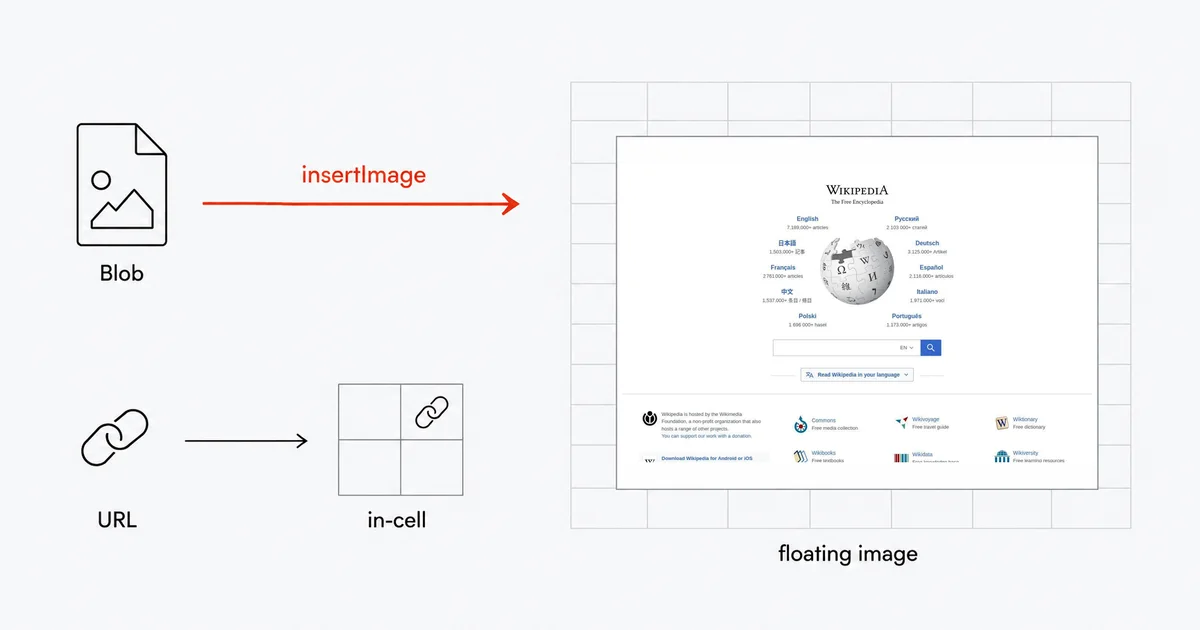
- The three mechanisms, and what each refuses
- The path that works
- The 2MB ceiling is the real constraint
- Why in-cell images need a URL
- Why =SCREENSHOT(A1) cannot work the way you want
- muteHttpExceptions is not optional in a loop
- Where the key lives, and who can still read it
- Honest limits
- FAQ
- Related reading
The three mechanisms, and what each refuses
| Mechanism | Takes binary? | The wall |
|---|---|---|
insertImage(blob, col, row) — floating image over the grid |
Yes | "The maximum supported blob size is 2MB" |
newCellImage() — true in-cell image, moves with the row |
No | setSourceUrl(url) is the only source method; there is no blob overload |
=IMAGE(url) — formula |
No | URL only, and "You can only use URLs that aren't hosted at drive.google.com" |
Read the third row twice, because it closes the door people reach for first. The natural workaround for the other two — save the PNG to Drive, publish it, and point =IMAGE() at the Drive link — is explicitly documented as not working.
The path that works
Floating images via insertImage, driven from a custom menu. Full code:
function onOpen() {
  SpreadsheetApp.getUi()
    .createMenu('Screenshots')
    .addItem('Capture column A', 'captureColumn')
    .addToUi();
}

function captureColumn() {
  const sheet = SpreadsheetApp.getActiveSheet();
  const key = PropertiesService.getScriptProperties().getProperty('SITE_SHOT_KEY');
  const urls = sheet.getRange('A2:A').getValues();

  for (let i = 0; i < urls.length; i++) {
    const pageUrl = String(urls[i][0]).trim();
    if (!pageUrl) continue;
    const row = i + 2;

    // JPEG and a fixed viewport, both deliberate: see the 2MB ceiling below.
    const api = 'https://api.site-shot.com/?' + [
      'url=' + encodeURIComponent(pageUrl),
      'userkey=' + encodeURIComponent(key),
      'format=jpeg',
      'width=1280',
      'height=800',
      'no_ads=1',
      'no_cookie_popup=1'
    ].join('&');

    // muteHttpExceptions is essential — see below.
    const res = UrlFetchApp.fetch(api, { muteHttpExceptions: true });

    if (res.getResponseCode() !== 200) {
      sheet.getRange(row, 2).setValue('HTTP ' + res.getResponseCode());
      continue;
    }
    sheet.insertImage(res.getBlob(), 2, row);
  }
}
Set the key once, under Project Settings → Script Properties, as SITE_SHOT_KEY.
The 2MB ceiling is the real constraint
Sheet.insertImage documents it plainly: "The maximum supported blob size is 2MB."
A full-page screenshot of a modern site clears 2MB without effort. The size problem has to be solved on the capture side, because Apps Script gives you no downscaling primitive to solve it afterwards. That is why the example above does three things deliberately: it asks for format=jpeg rather than PNG, sets an explicit width and height, and does not pass full_size=1.
(format=jpeg and format=jpg both return image/jpeg, and since September 2026 format=webp returns lossless WebP, about 35% smaller than PNG — though Sheets documents only PNG, JPEG and GIF for inserted images, so don't count on insertImage taking a WebP blob. On a photo-heavy page JPEG is far smaller than PNG, though on a plain text page PNG can win — the point is that you have the lever.)
The failure mode is nasty in a specific way: your test against a small page succeeds, and the script fails on the first real target. If a full-page capture exceeds 2 MB, this blob-insertion method cannot embed it. Store that image elsewhere and put a link in the cell.
Why in-cell images need a URL
Floating images sit over the grid. They do not sort with the row, do not filter, and drift when you insert rows. What most people actually want is ValueType.IMAGE — a true in-cell image.
SpreadsheetApp.newCellImage() returns a CellImageBuilder, and its only source method is setSourceUrl(url), taking a String. There is no setSourceBlob, so you cannot pass the fetched blob directly to this builder. Google's reference documents the URL-based interface.
Use a URL that serves the image. A screenshot-API URL includes your key, so a stored image URL is preferable for shared sheets. Per the table above, a Google Drive URL is not supported by =IMAGE().
One more restriction on the formula route, which kills the obvious refresh trick: "you cannot directly or indirectly reference a volatile function in the base URL, the consistent part of the website's address, of the IMAGE function. NOW(), RAND(), RANDARRAY(), RANDBETWEEN() are examples of volatile functions." Appending &t= and NOW() to force a re-capture is not available to you.
Why =SCREENSHOT(A1) cannot work the way you want
The tempting design is a custom function. It cannot embed an image, and the reason is structural rather than a limitation you can code around.
Inside a custom function the Spreadsheet service is "Read-only (can use most get() methods, but not set())", and "A custom function can't affect cells other than those it returns a value to." So =SCREENSHOT(A1) can return a string — a URL for =IMAGE() to consume — and nothing more.
There is also a timing trap here that catches a lot of tutorials. Apps Script's headline runtime is 6 minutes per execution, but that number belongs to menu and trigger runs. Custom functions get 30 seconds: "A custom function call must return within 30 seconds. If it doesn't, the cell displays #ERROR! and the cell note is Exceeded maximum execution time (line 0)." A heavy page render can spend that on its own.
Google's own documented escape hatch is exactly what the working example uses: "To use a service other than those in the preceding list, create a custom menu that runs an Apps Script function instead of writing a custom function."
muteHttpExceptions is not optional in a loop
By default, UrlFetchApp.fetch throws on a 4xx or 5xx: "If true the fetch doesn't throw an exception if the response code indicates failure, and instead returns the HTTPResponse. The default is false."
In a loop over a column of URLs, that default means one blocked target or one quota error aborts the entire run mid-column, leaving half your sheet populated and no indication of where it stopped. Set it true, check getResponseCode(), and write the failure into the cell — as the example does — so a partial run is legible.
Where the key lives, and who can still read it
Use PropertiesService.getScriptProperties(). Properties are "scoped to one script" and "never shared between scripts", and you can set up to fifty by hand from the project settings page.
Now the caveat that matters more than the mechanism, and that most tutorials skip.
For a container-bound script — the ordinary Extensions → Apps Script case — the key is not hidden from your collaborators: "All container-bound scripts share the same access lists as their containers. This means that anyone with permission to edit the spreadsheet can also edit any Apps Script code attached to it."
Anyone who can edit the sheet can add one line that logs the property. Script Properties protect the key from viewers and keep it out of shared formulas; they do not protect it from editors. If the sheet circulates widely, put the key behind something you control — a proxy endpoint — rather than in the document.
The =IMAGE() no-code route is strictly worse on this axis: the key sits in plaintext inside the cell formula, readable by anyone with view access.
Honest limits
Bulk runs need checkpointing. Script runtime is 6 minutes per execution. A few hundred URLs at several seconds each will not finish in one go. Store the last processed row in Script Properties and resume from a time-driven trigger.
Trigger time is capped per day. 20 triggers per user per script, and total trigger runtime of 90 minutes per day on a consumer account (6 hours on Google Workspace). An unattended nightly job over a large list will run out of budget before it runs out of rows.
URL Fetch has its own quotas. 20,000 calls per day on a consumer account, 100,000 on Workspace. Response size is capped at 50 MB per call, which is not your problem here, and URL length at roughly 2 KB — which can be, if you are passing long target URLs plus many parameters.
Nothing here is a change-detection system. A column of screenshots taken nightly is a record, not an alert. If you need to be told when a page moves, that belongs in monitoring, not in a spreadsheet.
FAQ
Why does insertImage fail on my full-page screenshot?
Because Sheets caps it. The documentation for inserting a BlobSource states that the maximum supported blob size is 2MB, and a full-page PNG of a modern site routinely exceeds that. Reduce the size at capture time by requesting a fixed viewport instead of a full-page image, since Apps Script offers no way to downscale the blob afterwards.
Can I put a screenshot into a cell rather than floating over the grid?
Not directly from binary. The CellImageBuilder returned by newCellImage exposes only setSourceUrl, which takes a string, and there is no blob equivalent. In-cell images therefore need a URL that serves the image rather than a blob passed directly from UrlFetchApp.
Why does =IMAGE() not work with my Google Drive link?
Google documents that you can only use URLs that are not hosted at drive.google.com. This closes the most common workaround, which is to save the screenshot to Drive and reference the Drive link from the formula. Host the image somewhere else, or use insertImage instead.
Why does my custom function time out when a normal script does not?
Custom functions get 30 seconds, not the 6 minutes that menu items and triggers get. A custom function call must return within 30 seconds or the cell displays an error with the note that maximum execution time was exceeded. Run screenshot capture from a custom menu or a trigger instead.
Is an API key in Script Properties safe in a shared spreadsheet?
Only from viewers. Container-bound scripts share the same access lists as their containers, so anyone with permission to edit the spreadsheet can edit the attached script and read the property. Keys stay out of formulas and out of view-only access, but an editor can retrieve them.
Related reading
- How to Take Website Screenshots in Airtable — the same spreadsheet-shaped problem, solved by a field that takes a URL.
- How to Take Website Screenshots in GitHub Actions — when the list of URLs belongs in a repo instead.
- Automate Website Monitoring with Screenshots — what a nightly column of captures is and is not good for.
- Screenshot API documentation — every parameter used above.
Site-Shot returns an image from a single GET, so each capture above needs one UrlFetchApp call and no extra library. Apps Script will still ask you to authorize its spreadsheet and external-request permissions. See the plans.