Screenshot a page every day. Keep the whole series.
Give Site-Shot a URL and a cadence. It captures the page in a real browser, files every capture in a dated series, measures how much of it moved since last time, and emails you when that crosses the threshold you set.
How it works
1. Set the cadence
Every day, weekdays only, or the days of the week you choose — then tick the hours you want it taken. One hour, or all twenty-four.
Times are UTC, on the schedule, in the ledger and in the emails.
2. It captures itself
Full page or your own viewport, from twenty named device profiles, as PNG, JPEG or WebP — with ads and cookie banners removed. Every capture lands in your library.
Optionally through a real IP address in any of 50 countries.
3. It tells you how much moved
Each capture is measured against the previous one taken under the same settings. You get a percentage and a height change — and an email when it passes your threshold.
Alerts are off until you switch them on. The default threshold is 5%.
The series
Every version of the page, in one place
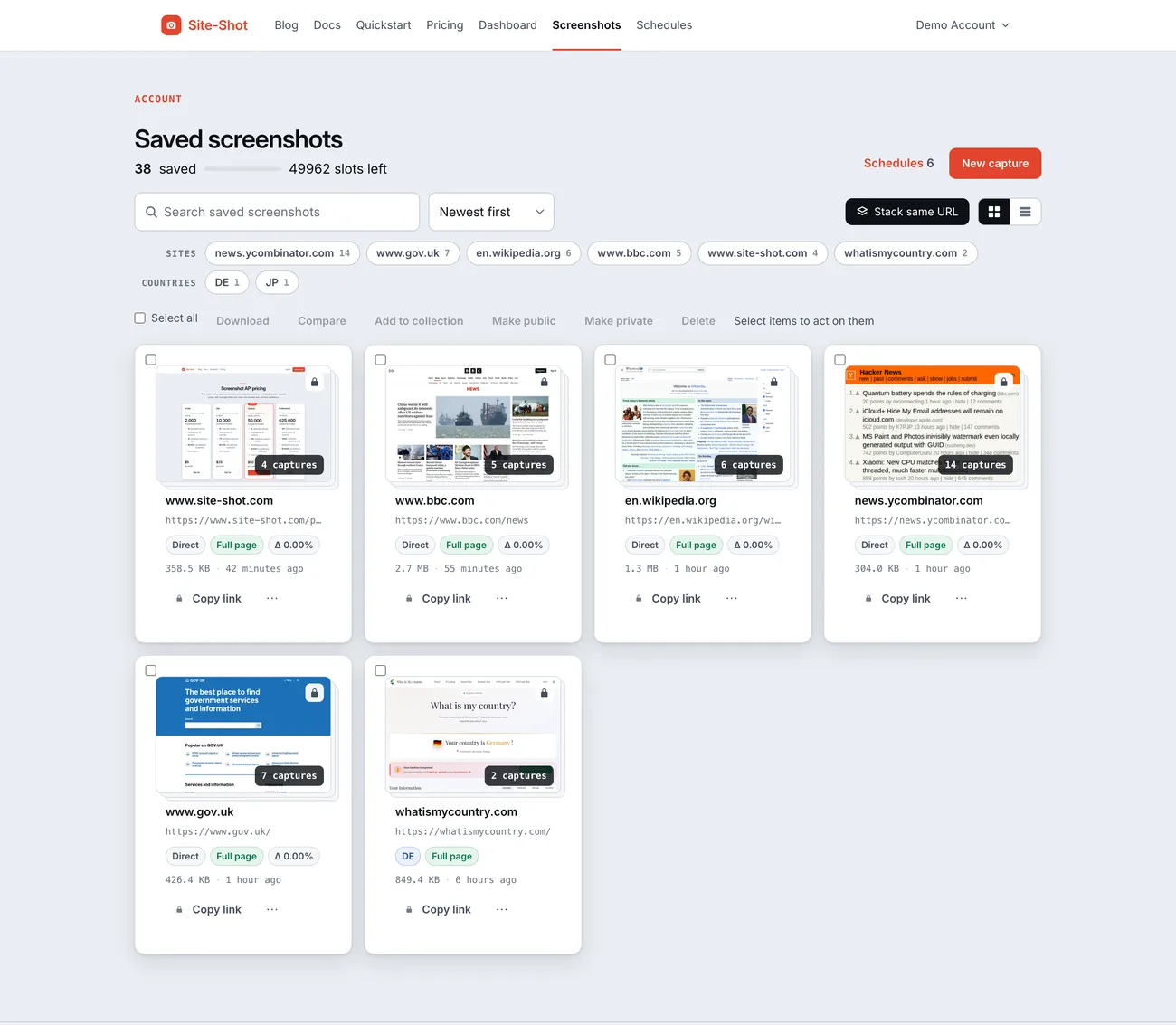
Repeat captures of one URL stack into a single card, so a library watching twenty pages shows twenty cards and not two thousand. Open the stack to walk the history.
Filter by site, by capture country, by collection, or by the chips for public, mobile and scheduled captures — each carrying a count of how many captures match it.
Select any two captures and compare them. Select many and download them as a ZIP, move them into a collection, or publish them as share links that need no account to open.
Every capture records a SHA-256 fingerprint of the exact bytes stored. The share page prints it and will re-download the image and recompute it in your browser.
A capture you must not lose can be locked against deletion — by you, by a bulk action, by an administrator, and by the schedule's own retention limit.
Change
How much moved — measured, not guessed
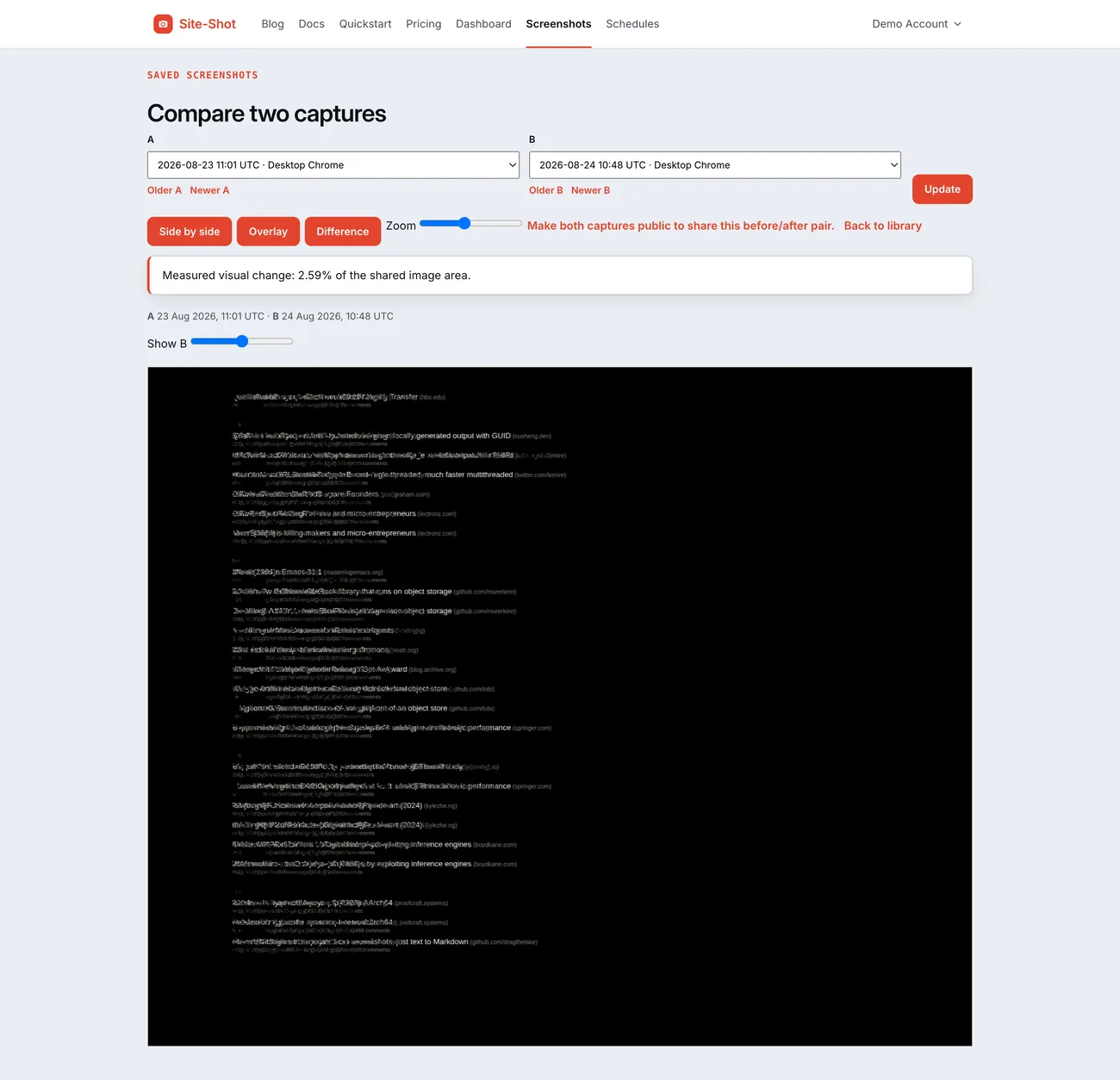
Each capture is shrunk to a 64-column grayscale strip. Two captures are lined up at the top and compared across the height they share, and Site-Shot reports the percentage of that area whose brightness moved — plus how many pixels taller or shorter the page got.
Neither image is ever stretched to match the other. A page that only got longer reads as nothing changed, with the growth reported separately as a pixel figure — which is the case a naive whole-image comparison gets loudest and most wrong.
When two consecutive captures are byte-for-byte identical, the schedule says so exactly, and collapses the run of them into one line rather than filling the page with sameness.
And when a pair cannot be compared — a target that answered at a different width, a capture since deleted — the answer is “not measured”. It is never rendered as 0%, because “we could not tell” and “nothing changed” are different facts.
Put the two captures side by side, slide one over the other, or switch to difference, which paints the two on top of each other so the pixels that moved are the ones that light up.
Geography
Watch the page as it looks in 50 countries
A schedule can render through a real IP address in the country you choose, with that country's language, time zone and geolocation — not just a proxy hop. Tick several countries on one URL and you get one schedule per country, grouped together and sorted by country.
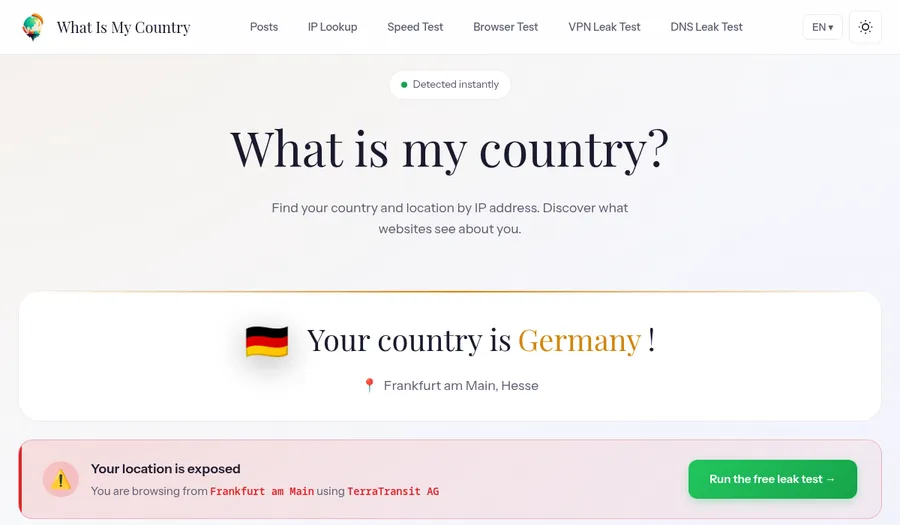

One URL, two countries, captured minutes apart through the production renderer — the page itself reports where it thinks the visitor is.
Trust
A ledger that admits its gaps
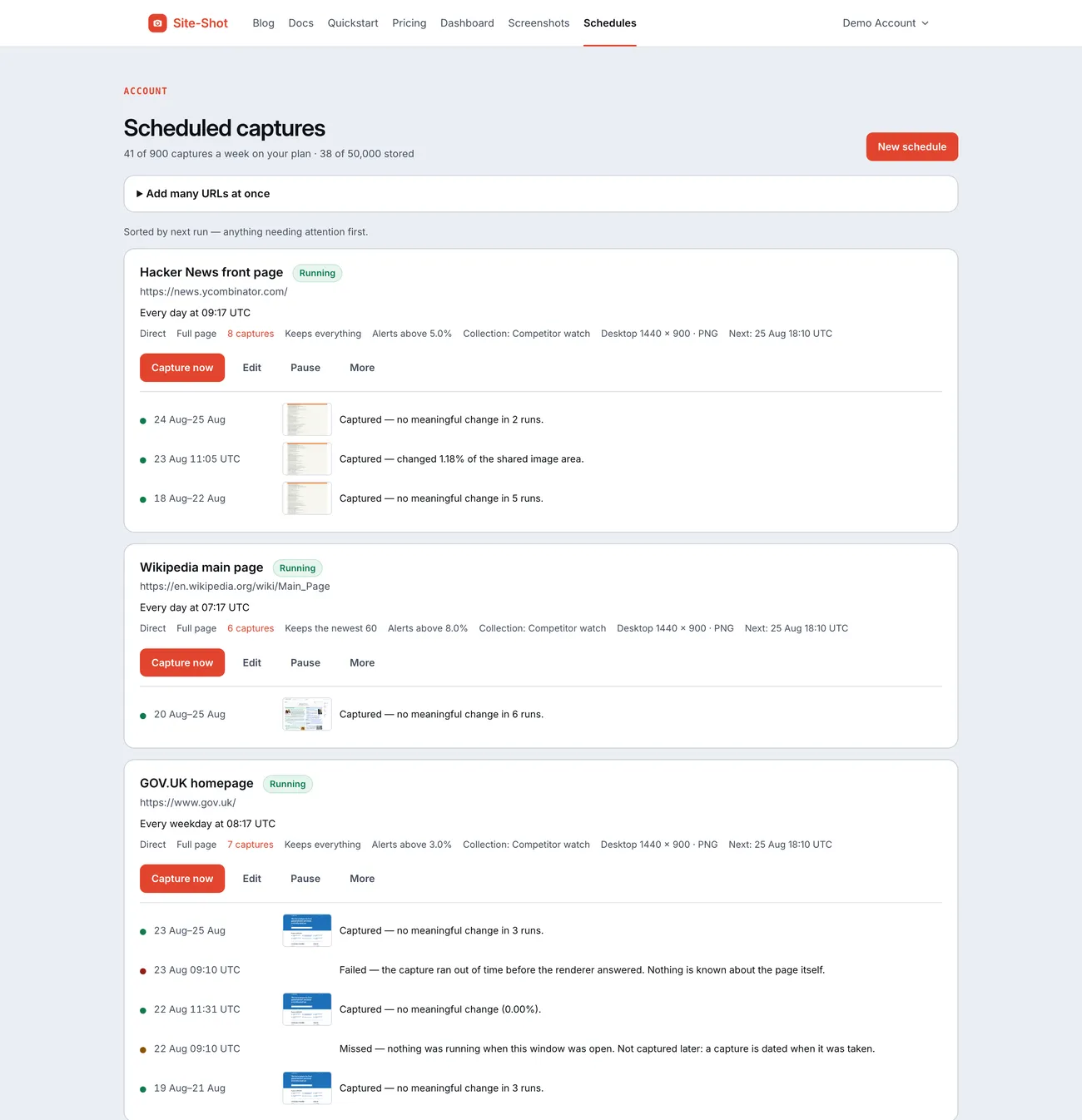
Monitoring that fails quietly is worse than none, because you stop looking. Every window a schedule was due to run leaves a row — including the windows that captured nothing, each with the reason.
A window that could not run inside its hour is recorded as missed and is never captured late. A late screenshot filed under the time it was due would be a small lie in a series whose whole value is that the timestamps mean something.
Whether a schedule is switched on is a different question from whether it is working, so the two are shown separately: overdue, last run failed with the streak, last window skipped, not run yet, running, paused.
A group of schedules shows its worst member's state, so a batch of dead monitors cannot read as healthy. Fourteen failed windows in a row pause the schedule and email you with each attempt and its reason.
Plans
What each plan lets you watch
Scheduled captures are sold by the week, counted across every schedule you have running. One page captured once a day costs seven of them.
| Plan | Per month | Scheduled captures a week | Pages watched once a day | Screenshots stored at once |
|---|---|---|---|---|
| X-Lite | $5 | 35 | 5 | 2,000 |
| Lite | $15 | 175 | 25 | 10,000 |
| Optimal | $50 | 900 | 128 | 50,000 |
| Professional | $500 | 12,000 | 1,714 | 625,000 |
Stored screenshots are a stock, not a monthly allowance: it is how many the account holds at once, and deleting one frees the slot. A schedule can be told to keep only the newest N so it runs indefinitely without filling that up — captures you have locked against deletion are exempt, and keep their slot. Every plan includes scheduling, change measurement and alerts — none of it is a higher tier. Full plan comparison.
Honest limits
What it does not do
The list below is the reason to believe the rest of this page. If one of these is the thing you need, you should buy something else.
- It measures how much changed, not what changed. There is no text diff, no element diff and no OCR. Nothing tells you a price went from 19 to 29 — you look at the two captures and see it.
- One capture an hour is as fine as it gets. You pick whole hours, and every hour you tick is another capture that day. There is nothing sub-hourly, so the fastest you can learn about a change is about an hour after it happens.
- Everything is UTC. There is no per-account time zone. The form shows what your local clock makes of the hour you picked, but what is stored and what runs is UTC.
- Alerts are email, and one a day. No Slack, no webhook, no SMS. A schedule sends at most one change email per day, so ten changes on a busy page produce one message — and a schedule stays silent until you switch its alerts on.
- A page that changes height alerts every time. Any change in the page's height counts as a change regardless of your threshold, so a rotating banner or a growing feed will alert on every run it is allowed to.
- A missed window stays missed. A window has an hour to run, with up to three attempts inside it. After that it is recorded as a gap with its reason — deliberately, rather than filed late under a time it was not taken.
- Schedules are managed in the browser. There is no API for creating or editing them. The screenshot API itself is a separate product, and it is what a schedule uses under the hood.
- A scheduled capture costs a screenshot and a slot. It is a real capture taken on your own key, so it is metered like an API call and it occupies one of the screenshots your plan can store. Running every schedule your plan allows, every day, uses about 8% of the plan's included screenshots.
- None of this is free. One screenshot in the browser is free and needs no account, but keeping screenshots, scheduling them and comparing them need a paid plan. Thirty days after a subscription ends, the saved screenshots are deleted.
Questions
How often can Site-Shot screenshot a page?
Every day, every weekday, or on the days of the week you pick — and within that you tick the hours you want, from one to all twenty-four. One capture an hour is the finest cadence; there is nothing sub-hourly. All times are UTC.
Does Site-Shot detect when a web page changes?
Yes. Each scheduled capture is compared with the previous capture taken under the same settings. Site-Shot reports what percentage of the shared image area changed and how many pixels taller or shorter the page got, and emails you when that crosses the threshold you set. It measures how much changed, not what changed — there is no text or element diff.
Where do change alerts go?
To the account's email address, and nowhere else — there is no Slack, webhook or SMS delivery. Alerts are off until you switch them on for a schedule, and a schedule sends at most one change email per day.
Can I take scheduled screenshots from another country?
Yes. A schedule can render through a real IP address in any of the countries Site-Shot currently offers, with the matching language, time zone and geolocation. Ticking several countries on one URL creates one schedule per country, grouped together.
How long are scheduled screenshots kept?
For as long as your subscription runs and your storage has room: each plan sets how many screenshots the account can hold at once, and a schedule can be told to keep only the newest N so it never fills that up. Thirty days after a subscription ends the saved screenshots are deleted.
Is there a free plan for scheduled screenshots?
No. Capturing a single screenshot in the browser is free and needs no signup, but keeping screenshots, scheduling them and comparing them require a paid plan. Plans start at $5 a month.
Start with one page
Capture the page you have in mind right now, for free and without an account. When you want it taken again tomorrow, and the day after, the schedule is one click from that capture.