A natural way to give a CrewAI agent a screenshot is to write a tool that returns image bytes. But an ordinary tool return is not the same as an image attachment.
The reason is structural rather than a bug: a CrewAI tool's return value reaches the agent as text. CrewAI's own documentation is unambiguous — "If you do not override format_output_for_agent, typed outputs are sent to the agent as JSON. Plain string results work as before." Returning raw PNG bytes from _run does not establish that the model received an image, even if the run completes.
Use the file-input path below to attach the screenshot explicitly, and check caching and model support before relying on the result.
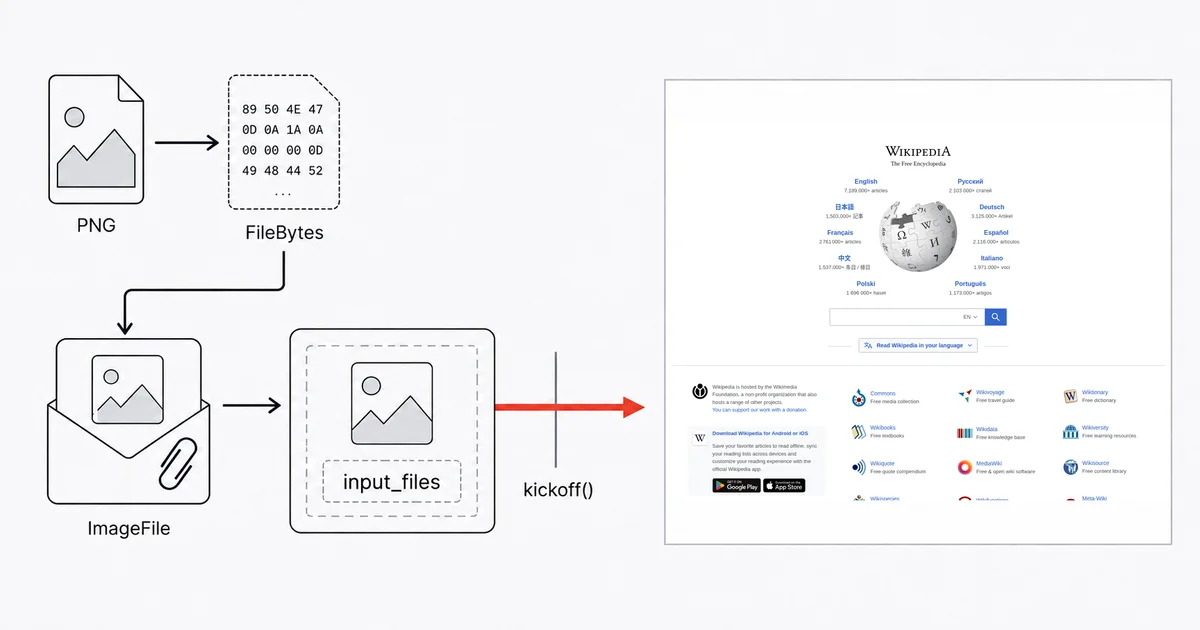
The short answer
Capture the screenshot before the crew runs, and pass it in as a file with input_files, not as a tool result. Set multimodal=True on the agent and use a model that actually supports vision. Then make sure tool caching is off for the capture tool if the crew is meant to compare two captures of the same page: a crew with caching enabled will hand you the first one twice.
Install what you actually need
Two packages, and the file support is a separate optional extra that most tutorials forget:
pip install 'crewai[tools,file-processing]' site-shot
CrewAI requires "Python >=3.10 and <3.14". This is worth checking before anything else — a machine that has moved on to 3.14 fails at install, well before any screenshot code runs, with an error that says nothing about screenshots.
CrewAI itself flags the file package as new: "The file processing API is currently in early access." Treat the surface below as something to pin a version against.
The path that works
Capture first, hand the bytes to the crew, let the agent look:
from crewai import Agent, Task, Crew
from crewai_files import ImageFile, FileBytes
from site_shot import SiteShot

client = SiteShot()  # reads SITESHOT_API_KEY from the environment

png = client.capture(
    "https://example.com/", full_size=True, no_ads=True, no_cookie_popup=True
)

shot = ImageFile(source=FileBytes(data=png, filename="capture.png"))

reviewer = Agent(
    role="Landing page reviewer",
    goal="Spot layout and messaging problems a visitor would notice immediately",
    backstory="You review pages the way a first-time visitor sees them.",
    multimodal=True,
)

task = Task(
    description="Review the landing page in {shot}. Describe what is above the fold, "
                "and flag anything broken, cut off, or unreadable.",
    expected_output="A short list of concrete problems, most serious first.",
    agent=reviewer,
    input_files={"shot": shot},
)

Crew(agents=[reviewer], tasks=[task]).kickoff()
Two details in there are easy to miss.
The file is referenced by key name inside the prompt. {shot} in the task description is the same "shot" key as in input_files. That is how the agent knows which file you mean when there is more than one.
You do not base64 anything. CrewAI decides how to ship the file: "You don't need to manage this yourself. CrewAI automatically uses the most efficient method based on file size and provider capabilities." Small files go inline as base64, larger ones through a provider's file-upload API.
input_files can also be set on the crew or the flow, and CrewAI states the precedence plainly: "Flow input_files < Crew input_files < Task input_files". Task-level wins.
What this means for agent design
The example uses capture first, then reason: you decide what to screenshot and attach it before the task starts. That keeps capture failures separate from the crew's analysis.
That is fine for most real jobs: review these landing pages, compare our page to a competitor's, check these twenty client sites for a broken hero image. All of those know their URLs up front.
For targets chosen mid-run, CrewAI also documents a built-in AddImageTool for multimodal agents. A capture tool can save an image and return its local path or a credential-free URL; the agent can then load it through that image tool. This is separate from returning raw bytes as ordinary tool output. See CrewAI's multimodal-agent guide, or LangChain's image-returning tool pattern.
Two behaviours that will bite you
Tool caching is opt-in now, and was on by default before. Checked against crewai 1.15.20 on 2026-09-08: Crew(cache=False) is the default, and the Agent parameter table's cache "Default is True" only means the agent participates once the crew turns caching on (or the agent itself is built with an explicit cache=True or a cache_handler). Every 0.x release shipped Crew(cache=True), so a crew written against those versions, or a copied example that sets cache=True, still has it on.
With caching on, this is close to a trap for screenshots. A crew whose job is "capture the page, wait, capture it again, tell me what changed" will call the same tool with the same arguments twice and get the first result back both times. It will then confidently report that nothing changed. Disable caching for the capture tool (its cache_function) if re-capturing is the point; do not change irrelevant arguments just to bypass the cache.
A completed run does not prove a successful capture. If a tool error is returned as ordinary text, the agent narrates the problem in its final answer and the run is marked successful. Your crew "worked". You get a paragraph explaining that the screenshot could not be taken, in the place where you expected a page review — and nothing in the run status distinguishes that from a real answer. If the crew feeds anything downstream, check for the outcome you wanted rather than for a completed run.
multimodal=True is not the whole story
The flag defaults to False, and turning it on is necessary but not sufficient. CrewAI says it twice: "Ensure your language model supports multimodal capabilities" and "Ensure the selected LLM supports image inputs."
A text-only model cannot inspect the image; depending on the integration, the request may fail or the image may not reach the model. Pick a vision-capable model explicitly.
Two related pieces of housekeeping:
VisionToolis not what its name suggests. CrewAI describes it as: "This tool is used to extract text from images." It is OCR, and it is hardwired toOPENAI_API_KEY. Asking it "is this layout broken?" gets you a dump of the page's text.- Mind the import roots.
from crewai.tools import BaseTool, toolis the framework, for writing your own tool.from crewai_tools import ...is the separate pre-built tools package. They look interchangeable and are not; mixing them up is the most common setup error in this framework.
Provider image limits are the real ceiling
The number that constrains a screenshot crew is not CrewAI's — it depends on the provider, model and file-handling mode. The following are the limits listed in CrewAI's file documentation, checked September 2026; they are not a universal specification for every current provider model:
| Provider | Image limit |
|---|---|
| Anthropic | Max 5 MB, max 8000x8000 pixels, up to 100 images |
| OpenAI | Max 20 MB, up to 10 images per request |
| Google Gemini | Max 100 MB |
| AWS Bedrock | Max 4.5 MB, max 8000x8000 pixels |
A full_size=True capture of a long page can pass 5 MB and can certainly pass 8000 pixels tall. Check the selected model's current limits and CrewAI's file-handling mode before sending it. Anthropic's current vision documentation differs from CrewAI's summary, and describes automatic resizing for many oversized images. Unsupported file types are a separate issue and can raise UnsupportedFileTypeError.
So size the capture to the provider:
- Drop
full_sizeand passwidthandheightfor a viewport shot. Most "how does this page look" questions are about the top of it anyway. max_heightcaps a full-page capture before it reaches an 8000-pixel provider limit.format="jpeg"on photo-heavy pages; keep PNG where the page is mostly text and UI.
Capturing from another country
Pass a two-letter ISO 3166-1 country code and the render routes through a real IP address in that country, with the language, time zone and geolocation defaults that belong to it:
png = client.capture(
    "https://example.com/", country="DE", strict_country=True, no_ads=True
)
The code, never the name — country="DE", not country="Germany".
Use strict_country=True in a crew. Without it, an exhausted country pool falls back to a US render and returns a screenshot that looks entirely normal; your agent will then describe the US page in fluent detail with no indication anything went wrong. With it the SDK raises CountryUnavailableError (importable from site_shot) in your own code, before the crew ever starts — wrap the capture in try / except CountryUnavailableError, which is the right place to catch it. The API's raw "error": "country_unavailable" string is on the exception's body.
Geotargeting comes with any paid plan. The current country list is on the countries page and moves with live proxy capacity.
Where the honest limits are
Do not pass a screenshot URL that carries your API key. CrewAI can take a URL as a file source and pass it straight to the model provider — "URL Reference | Direct URL passed to the model". A Site-Shot capture URL contains userkey=, so handing that URL over sends your key to OpenAI, Anthropic or Google. Fetch the bytes yourself and pass FileBytes, as in the example above.
A screenshot is untrusted content. It is a picture of a page you do not control, shown to a model that follows instructions. A page can render text aimed at the model rather than the reader, and the capture delivers it faithfully. Do not put an agent that captures arbitrary URLs in the same loop as credentials or an outbound tool.
Pages behind a login will not capture. The API renders public URLs.
This example does not need a separate HTTP-request tool. The SDK captures the image in ordinary Python before kickoff.
CodeInterpreterTool has been removed from crewai-tools, along with the deprecated allow_code_execution and code_execution_mode agent options. Older tutorials that shell out through it no longer run.
The free browser tool has no API. site-shot.com captures any public page with no signup, which is the quickest way to see what your target actually looks like before you build the crew. It is a browser tool, not a free API tier; the API needs a key, and plans start at $5/mo for 2,000 screenshots.
FAQ
Can a CrewAI tool return an image? Not by returning raw image bytes through the ordinary tool-result channel. Attach the image through input_files on a task, crew or flow, or let a multimodal agent load a saved image through its built-in AddImageTool.
How do I give a CrewAI agent a website screenshot? Capture the image in your own code before the crew runs, wrap the bytes in an ImageFile with a FileBytes source, and pass it through input_files on the task, referencing it by key name inside the task description. Set multimodal to True on the agent and use a model that supports image inputs.
Why does my CrewAI crew report that a page has not changed when it clearly has? Tool caching is one possible cause when the crew has it enabled: Crew.cache defaults to False as of crewai 1.15.20 but was True in every 0.x release, and with caching on, repeated calls with the same arguments reuse the first result. Disable caching for a capture tool that must fetch a fresh image, and confirm that the two captures are distinct before comparing them.
Why does my CrewAI screenshot crew succeed but return no analysis? Check that the selected model supports image inputs and that the screenshot was attached correctly. Setting multimodal to True alone does not establish either. A completed crew run is not proof that the model received or analyzed the image.
Is it safe to pass a screenshot API URL to CrewAI as an image source? No, if the URL contains your API key. CrewAI can pass a URL reference directly to the model provider, so a capture URL carrying userkey sends your key to OpenAI, Anthropic or Google along with the request. Fetch the image bytes in your own code and pass them as FileBytes instead.
The free Site-Shot browser tool captures any public page with no signup — try your target URL before you build the crew. For the API, plans and pricing start at $5/mo for 2,000 screenshots.