n8n is the natural place to build this. A schedule or a sheet supplies URLs, the HTTP Request node calls a screenshot API, and a Drive or Slack node files the picture. Three nodes, no code.
A screenshot can also be a large binary object. Alongside the HTTP settings, you need to check where n8n keeps binary data and how much memory the workflow uses.
Here is the version that survives contact with a real list of URLs.
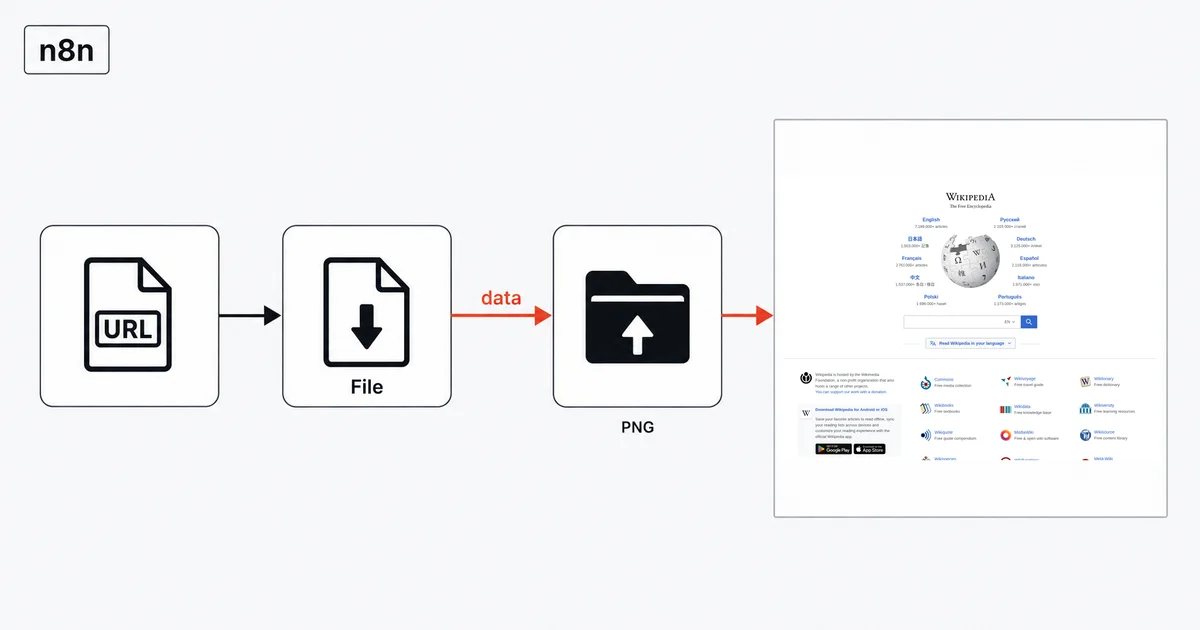
The short answer
In the HTTP Request node, open Add Option → Response, set Response Format to File, and name the binary field in Put Output in Field. Put your API key in a Query Auth credential rather than in the URL. Then keep the images small, because on n8n Cloud's smaller plans memory — not your API quota — is the ceiling you will hit first.
Configure the node properly
Add an HTTP Request node.
- Method:
GET - URL:
https://api.site-shot.com/ - Send Query Parameters: on, then add:
| Name | Value |
|---|---|
url |
{{ $json.url }} when looping over a list |
full_size |
1 |
no_ads |
1 |
no_cookie_popup |
1 |
Then the part that matters. Select Add Option → Response, and set Response Format to File. n8n's documentation for that choice is exact: "File: Select this option to put the response into a file. Enter the field name where you want the file returned in Put Output in Field."
Set Put Output in Field explicitly — data is the conventional name and the one downstream nodes expect. Do not leave it blank and hope.
There is also an Autodetect response format, which is the default and usually works out that an image is an image. Set File anyway. A tutorial that depends on autodetection is a tutorial that breaks on the one API that sends a slightly unusual content type.
no_ads and no_cookie_popup are not cosmetic here. A cookie wall is a large image of nothing, and on this platform large images are the expensive part.
The field name is what actually breaks
A missing-file error can be a naming problem: every node calls the binary field something different.
| Node | What it calls the field |
|---|---|
| HTTP Request | Put Output in Field |
| Google Drive → Upload | Input Data Field Name |
| Read/Write Files → Write | Input Binary Field |
| Extract From File | Input Binary Field |
They are all referring to the same thing. Google Drive's help text spells it out — "The name of the input field that contains the binary file data you wish to use." If you named it data in the HTTP node, type data in every node after it. A mismatch does not produce a helpful error; it produces a node that behaves as though no file arrived, because from its point of view none did.
And note what you do not need: there is no base64 step. n8n items carry binary data natively. Encoding only enters the picture when you deliberately want the image as text — Extract From File's Move File to Base64 String — for instance to drop it into a JSON body. For filing an image somewhere, converting it is a detour that costs memory and gains nothing.
Your API key does not belong in the URL
This is the security note specific to n8n, and it is easy to get wrong because pasting the key into the URL works perfectly.
n8n saves execution data by default, and that saved data includes node parameters. A key sitting in the URL string is therefore written into the execution log of every run — and on Cloud those logs are retained for days, visible to anyone with access to the instance.
Use a credential instead. In the HTTP Request node set Authentication to Generic Credential Type, then Generic Auth Type to Query Auth. n8n describes exactly this case: "Use this generic authentication if your app or service supports passing authentication as a single key/value query parameter." Set the parameter name to userkey and the value to your key. The credential is stored encrypted, referenced by name, and stays out of the execution log.
Memory is what actually kills these workflows
Start with the binary-data storage setting. n8n's own documentation states: "When handling binary data, n8n keeps the data in memory by default."
Now the room you have. On Cloud, "Trial: 320MiB RAM" and "Starter: 320MiB RAM" — and separately, "Note that n8n itself consumes memory to run. On average, the software alone uses around 180MiB RAM."
Subtracting those figures leaves roughly 140 MiB before workflow overhead, not a guaranteed screenshot budget. Memory use varies with the instance and workflow. A loop over 50 URLs that accumulates full-page PNGs does not fail at URL 50 with a clear message. It runs out of memory somewhere in the middle and dies in a way that looks random.
It gets worse while you are building, and this catches everyone: "manual executions increase memory consumption as n8n makes a copy of the data for the frontend". The run you are watching in the editor uses meaningfully more memory than the same workflow will in production. A workflow that crashes only when you test it by hand is not broken — it is being measured under a heavier load.
What to do about it:
- Don't hold what you don't need. Upload each capture and move on rather than collecting fifty binaries and uploading at the end.
- Loop in small batches rather than fanning out over the whole sheet at once.
- Shrink the image at the source — the next section.
- Self-hosted? You can change where binary data lives instead of keeping it in RAM. Note the constraint if you run at scale: n8n's docs say that in queue mode you must use
databasemode, because "n8n doesn't supportfilesystemmode with queue mode."
Make the captures smaller
This is the highest-leverage thing you can do on n8n, because it relieves memory, storage and transfer at once.
- Viewport instead of full page. Drop
full_sizeand passwidthandheight. For most monitoring the top of the page is what you compare. max_heightcaps a full-page capture that would otherwise run to twenty thousand pixels down a long landing page.format=jpegon photo-heavy pages. Keep PNG where the page is mostly text and UI, which stays sharper.
Each capture counts as one screenshot against your plan whatever triggered it.
Response settings and storage to check
The Timeout option covers less than you think. n8n describes it precisely: "Use this option to set how long the node should wait for the server to send response headers (and start the response body). The node aborts requests that exceed this value for the initial response." A screenshot API renders the page before it starts responding, so this is exactly the timeout you need to raise for slow sites — but it does not protect you from a slow transfer once bytes start flowing.
Never Error turns a failed capture into a corrupt file. By default, "the node returns success only when the response returns with a 2xx code." That default is correct here. Switch Never Error on and the error response gets written into your binary field and uploaded to Drive under a .png name. Sometimes that is a small JSON blob no viewer can open. Worse, a refused render can return a perfectly valid PNG error card that opens fine and sails past any "is this a real image?" check you might add — which is why the status, not the bytes, is what you branch on.
And do not write screenshots to disk on Cloud. n8n is blunt: "Files this node writes on Cloud aren't guaranteed to persist across workflow executions, worker restarts, or instance redeploys. Don't use this node to store files you need to keep." Send them to Drive, S3, Dropbox — somewhere that is actually storage.
Capturing from another country
Add a two-letter ISO 3166-1 country code as a query parameter and the render routes through a real IP address in that country, with the language, time zone and geolocation defaults that belong to it:
| Name | Value |
|---|---|
country |
DE |
strict_country |
1 |
Use the two-letter ISO 3166-1 code, such as country=DE, rather than a country name.
strict_country=1 matters more in an automation than anywhere else, because nobody is looking. Without it, an exhausted country pool falls back to a US render and files a completely normal-looking screenshot of the wrong country. With it, the request fails outright with HTTP 404 — and since you left Never Error off, that non-2xx response fails the node, the run is flagged, and you know which URLs to retry. The status is what you branch on: a 404 body can still be a valid PNG error card, so anything that ignores the status files a readable image of the words "screenshot creation error".
Geotargeting comes with any paid plan. The current country list is on the countries page and moves with live proxy capacity.
Where the honest limits are
A schedule burns an execution whether or not anything happened. n8n counts "one execution every time the node fires, regardless of outcome." An hourly screenshot schedule is 720 executions in a 30-day month before you have looked at a single image.
Which is worth weighing against not using n8n for this. If the whole job is "capture this URL on a cadence and keep the history", scheduled screenshots do it natively — every capture filed in a dated library, with optional email alerts when the page changes by more than a threshold you set. No executions, no memory ceiling, no Drive folder. n8n earns its place when the screenshot is one step in a longer chain: into a CRM, a Slack channel, an AI summary, a client report.
Pages behind a login will not capture. The API renders public URLs; a members-only page returns what a logged-out visitor sees.
The Code node cannot reach binary data from Python. n8n states it plainly: "getBinaryDataBuffer() isn't supported when using Python." If you need to touch the bytes in code, that is a JavaScript Code node.
The free browser tool has no API. site-shot.com captures any public page with no signup, which is the quickest way to see what a capture of your target looks like before you build the workflow. It is a browser tool, not a free API tier; the API needs a key, and plans start at $5/mo for 2,000 screenshots.
FAQ
How do I get an image out of the n8n HTTP Request node? Open Add Option, choose Response, and set Response Format to File. n8n's documentation describes this option as putting the response into a file, and asks you to enter the field name where you want the file returned in Put Output in Field. Name that field explicitly, because every downstream node refers to it by that name.
Why does my n8n workflow say there is no binary data when the HTTP Request node clearly returned a file? Check for a field-name mismatch first. Each node calls the same thing something different — HTTP Request calls it Put Output in Field, Google Drive Upload calls it Input Data Field Name, and Read/Write Files calls it Input Binary Field — so a name typed in one node and not the next produces a node that behaves as though no file arrived.
Why do my n8n screenshot workflows run out of memory? Because n8n keeps binary data in memory by default, and on Cloud the smaller plans give an instance 320MiB of RAM while n8n itself uses around 180MiB on average. Holding several full-page screenshots at once exhausts what is left. Capture the viewport rather than the full page, process URLs in small batches, and upload each image before fetching the next.
Is it safe to put my API key in the n8n HTTP Request URL? No. n8n saves execution data including node parameters, so a key in the URL is written into the log of every run and retained for days on Cloud. Use a Query Auth generic credential instead — n8n provides it for services that pass authentication as a single key/value query parameter — so the key is stored encrypted and stays out of execution data.
Can n8n take a screenshot from a specific country? Yes. Add a two-letter ISO 3166-1 country code such as DE as a query parameter to route the render through a real IP address in that country, and add strict_country so an exhausted country pool fails the request outright with an HTTP 404 instead of silently falling back to a United States render. Leave the node's Never Error option off so that error actually fails the run.
The free Site-Shot browser tool captures any public page with no signup — try one of your URLs before you build the workflow. For the API, plans and pricing start at $5/mo for 2,000 screenshots.